
Interactive maps help the audience better visualize and understand your journey, making the content more interesting than being a static webpage.
ArcGIS storymap
link to the example storymap: Storymap of random locations near Carleton
Here is an example of how you can embed a storymap to your portfolio, you can place this anywhere within your menu to suit your purpose, or use it as a tool to go to the details of a particular place you visited.
Guide on creating storymaps.
How to set up and create an ArcGIS storymap
An ArcGIS account is needed and you can set it up by following these instructions: log in to ArcGIS (Carleton support)
After creating an account, follow this website for detailed instructions: Getting started with ArcGIS story map, however, you can also follow the summarized instructions shown below:
- sign in to storymaps.arcgis.com
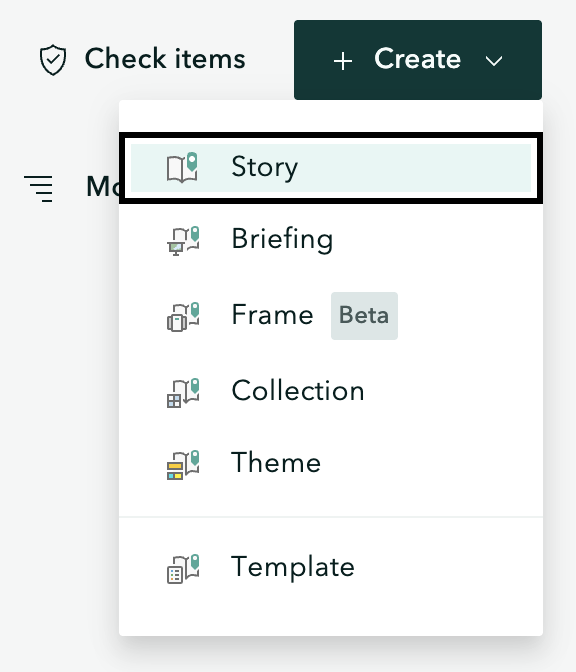
- click on Create > Story shown on the top right corner of the webpage
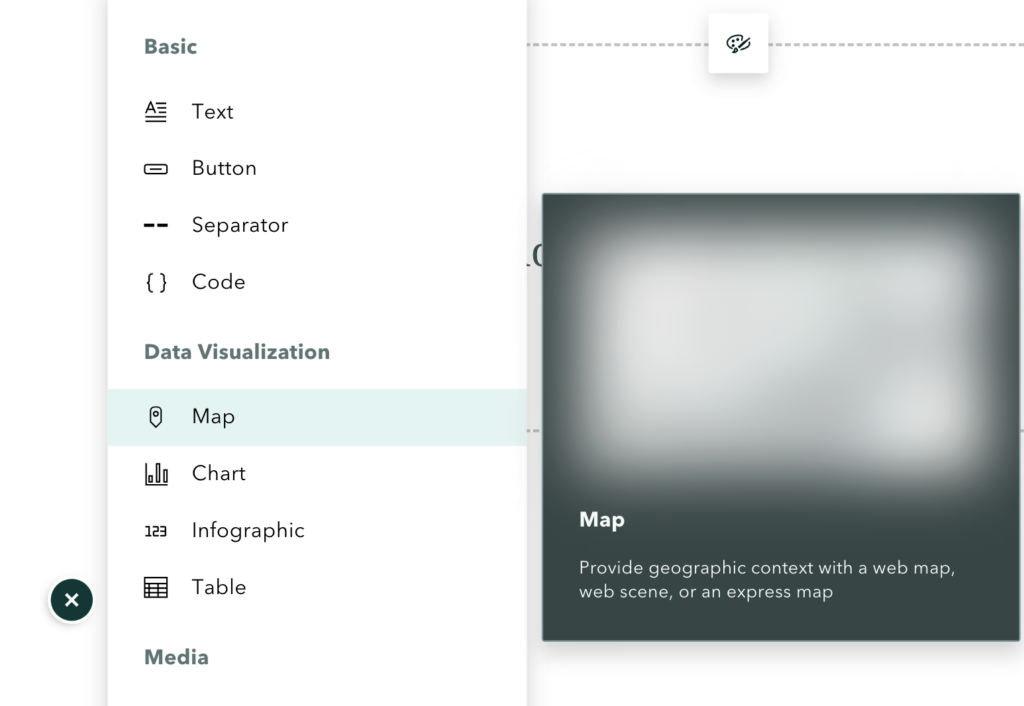
- You can then start editing your storymap
- After finishing up the details of your storymap click Publish
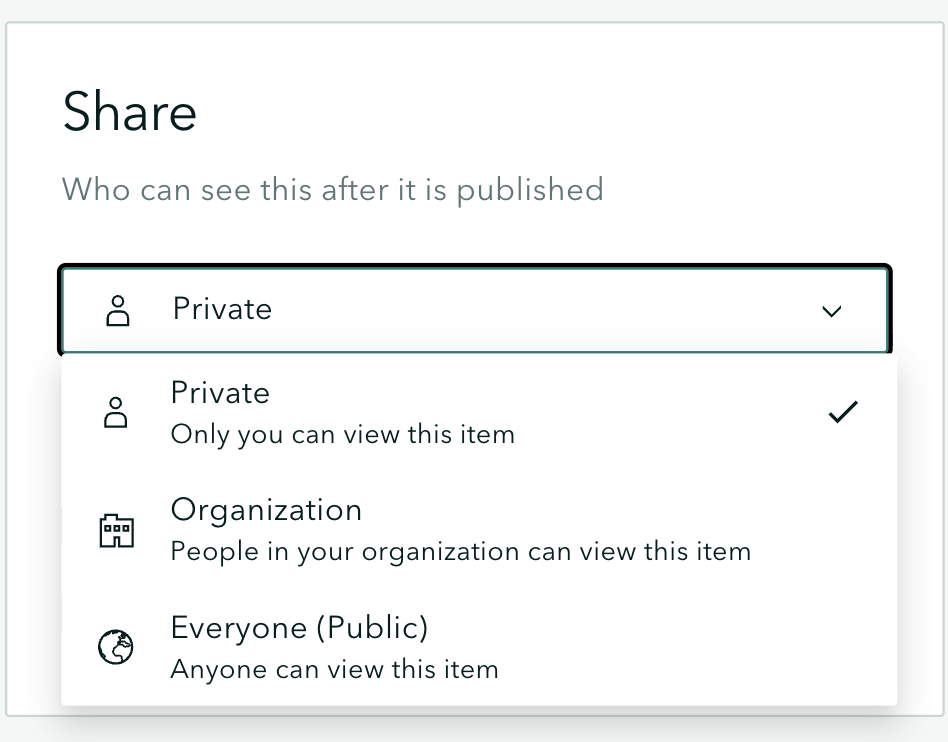
- Remember to set your storymap to Organization or Public to be able to share to other people
Google maps tour
This has limited features compared to ArcGIS but it is a good simple and straightforward alternative. And could be more efficient compared to ArcGIS storymaps.
Here is a guide on creating maps using My Maps on google: creating maps with My Maps
Knightlab storymap
The Knightlab storymap provides an alternative to the ArcGIS storymap. It is also simpler compared to ArcGIS storymap, but is could serve most purposes.
The storymap can be set up by following this website: Create a Knightlab storymap